
About the Video to iPhone Ringtone Converter
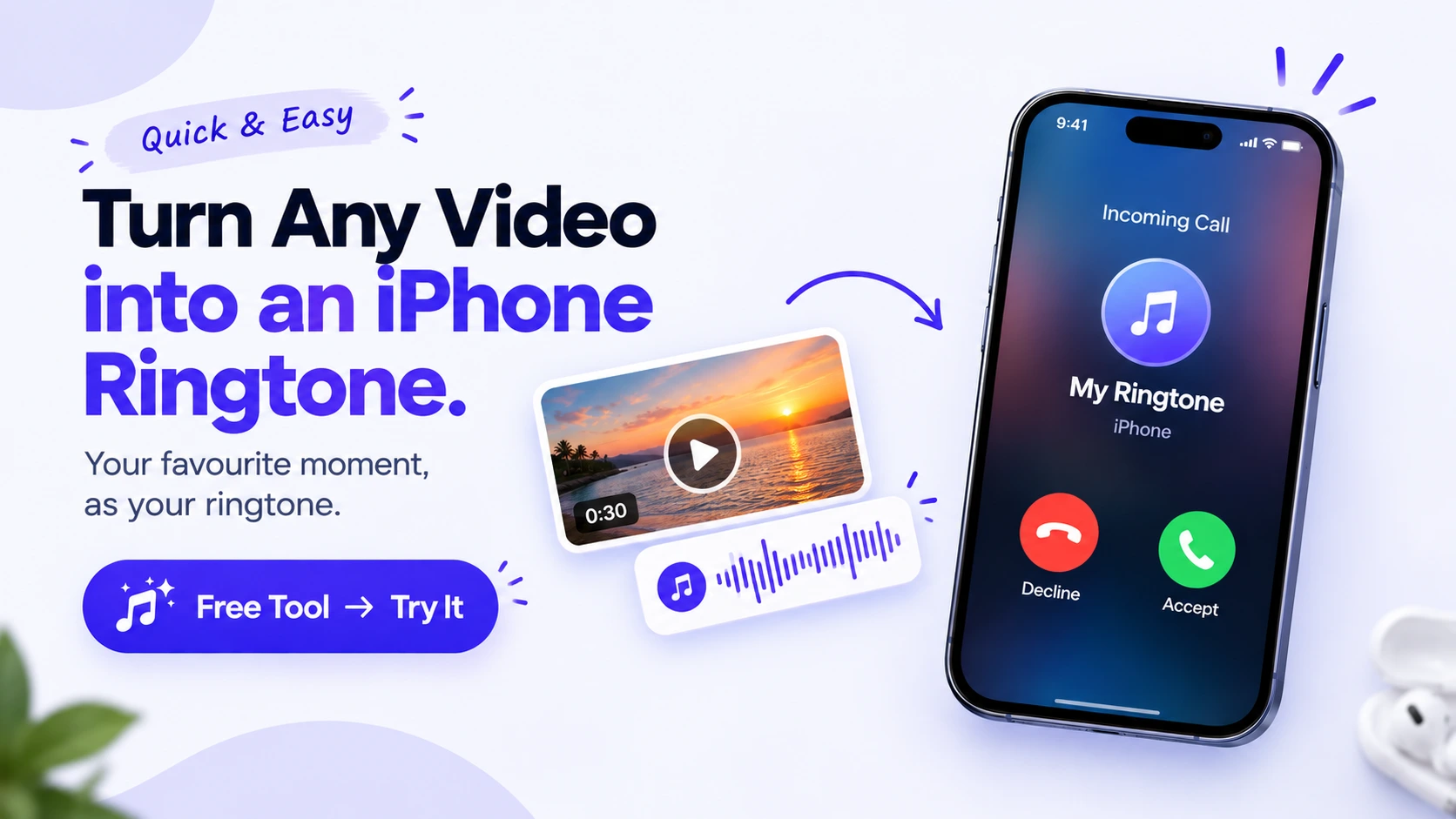
This tool extracts the audio from an uploaded video, lets you pick up to a 30-second section on a waveform, and exports it as a .m4r file — the exact format iOS expects for custom ringtones. Everything runs on your device using ffmpeg compiled to WebAssembly; the video is never uploaded anywhere.
How it works
- Drop in a video (MP4, MOV, WebM, MKV or AVI).
- The tool extracts the audio track and draws a waveform.
- Drag the start/end handles to pick up to 30 seconds.
- Preview the trimmed clip, keep fade in/out on if you want a smoother start and end.
- Export — a
ringtone.m4rfile downloads automatically.
Watch it in action
A quick walkthrough of trimming a video and exporting it as a .m4r ringtone with this tool.
How to set this as your iPhone ringtone
Safari can't install a ringtone straight from a download — iOS treats .m4r files specially and needs one extra step to get the file into your phone's Tones library.
On iPhone (Files app, no computer or app needed)
- Save the downloaded
ringtone.m4rto the Files app (Safari's download prompt offers this directly; on another device, AirDrop or transfer it to your iPhone first). - Open the Files app and locate
ringtone.m4r. - Tap and hold the file, then tap Share.
- In the share sheet, tap More (the row of dots), then tap Use as Ringtone.
- That's it — go to Settings → Sounds & Haptics → Ringtone and select it.
On Mac (Finder, cable sync)
- Connect your iPhone to your Mac and open Finder.
- Select your iPhone in the sidebar, then drag
ringtone.m4ronto the Tones tab (or open the Tones section and drag it into the list). - Sync. On your iPhone, go to Settings → Sounds & Haptics → Ringtone and select it.
Privacy
Nothing is uploaded. The video is read locally, decoded and trimmed by ffmpeg.wasm running inside your browser, and the ringtone is generated and downloaded on your device — no server, no account, no tracking of your file.

 Get FreeMyTask as an app