
About the Add Border Tool
This puts a solid-colour border or frame around an image. A border helps a photo stand out against a busy page, gives product shots a clean consistent look, adds breathing room for a print or collage, or rounds off the corners for a softer, modern feel. Choose the thickness, colour and corner radius, and download the framed image.
Want text overlaid instead of a solid frame — a caption, credit or logo? Try Add Watermark.
How it works
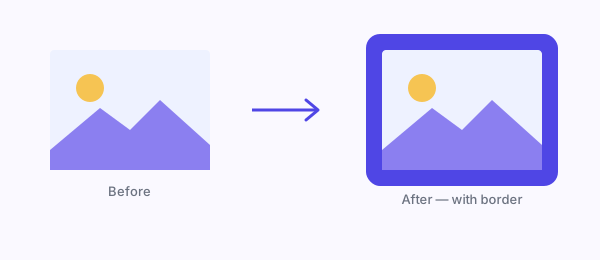
The tool draws a new canvas larger than your image by the border width on all sides, fills it with your chosen colour, and places the image in the centre. If you set a corner radius, it rounds both the outer frame and the image inside it — clipping the image to the rounded shape, so the corners become transparent in the exported PNG. The border width, colour and radius all update the preview live.
Assumptions and behaviour
- The border is added outside the image, so the final dimensions grow by twice the border width.
- Corner radius rounds both the frame and the image, clipping the photo to match.
- With rounded corners, the exported PNG has transparent corners (since a rounded shape can't fill a square).
- The border is a single solid colour.
Limitations
- Solid colour only — it doesn't do gradient, patterned, textured or multi-layer (double) borders, or a photo-style drop shadow.
- Rounded corners produce transparency, so if you place the result on a coloured background it will show through the corners; keep square corners for a fully opaque image.
- It adds a uniform border on all four sides; you can't set different widths per side. Need to trim the image first? Use Crop Image before adding a border.
- Output is PNG; convert or compress afterwards if you need a smaller file.
Framing several photos to display together instead of one? Try the Photo Collage Maker.
Privacy
Adding the border runs entirely in your browser with the Canvas API. Your image is never uploaded or stored.

 Get FreeMyTask as an app